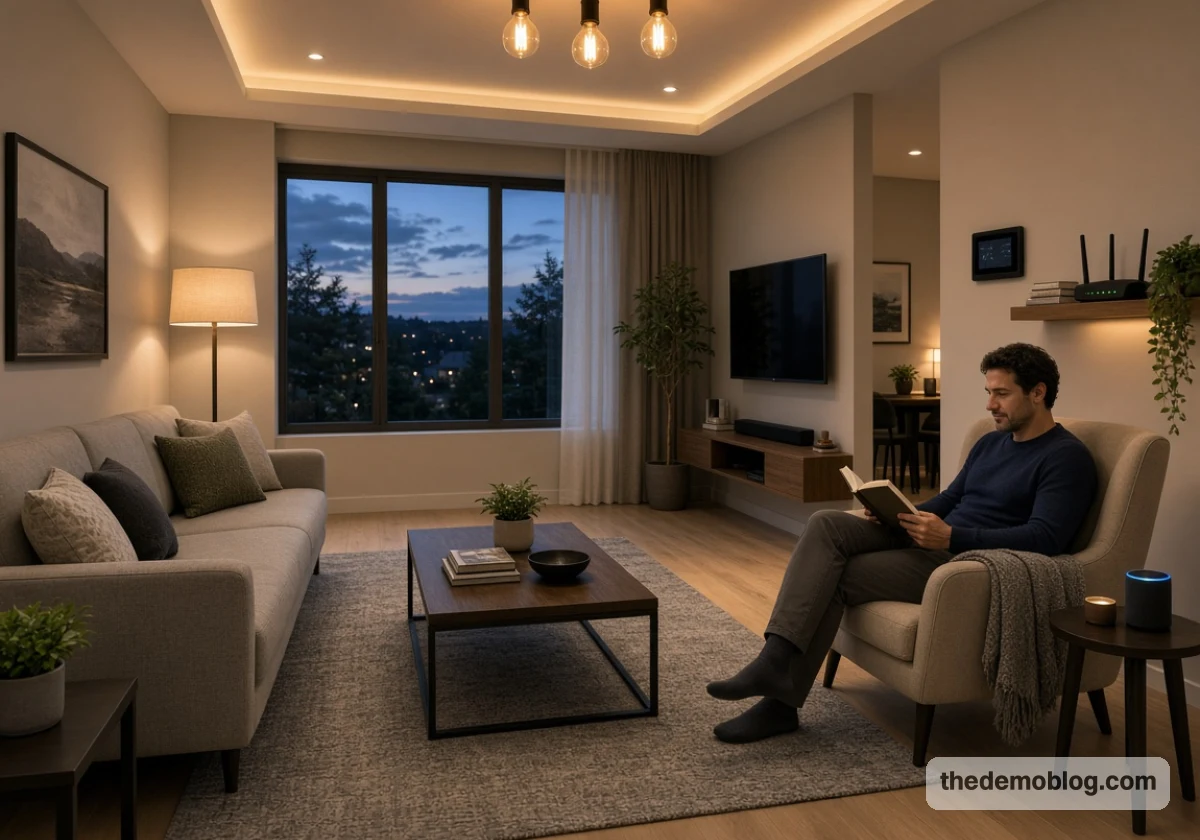
Smart home devices without internet access often stop working because they rely on cloud servers to process commands. When the internet goes down, those devices might not respond, even when you’re standing right next to them.
At The Demo Blog, we cover new technology, industry trends, and ideas that change how people use technology. We explain these developments in simple terms so readers understand how new tools, including local smart home systems, work in daily life.
This guide explains why some smart home devices rely on the cloud, which ones work offline, and how your router affects them. You’ll also learn six ways to keep your smart home running when the cloud becomes unavailable.
Why Does the Cloud Sit Between You and Your Own Light Switch?
Manufacturers often route commands through their servers to avoid adding processing power to every bulb and plug. When you tap the app, your command travels from your phone to the company’s data center. The server checks your account before sending the instruction back to your device (sometimes from a data center in another state).
Voice assistants like Alexa and Google Home work in much the same way. They send your spoken requests to the cloud, since the speaker on your counter can’t handle most commands alone.
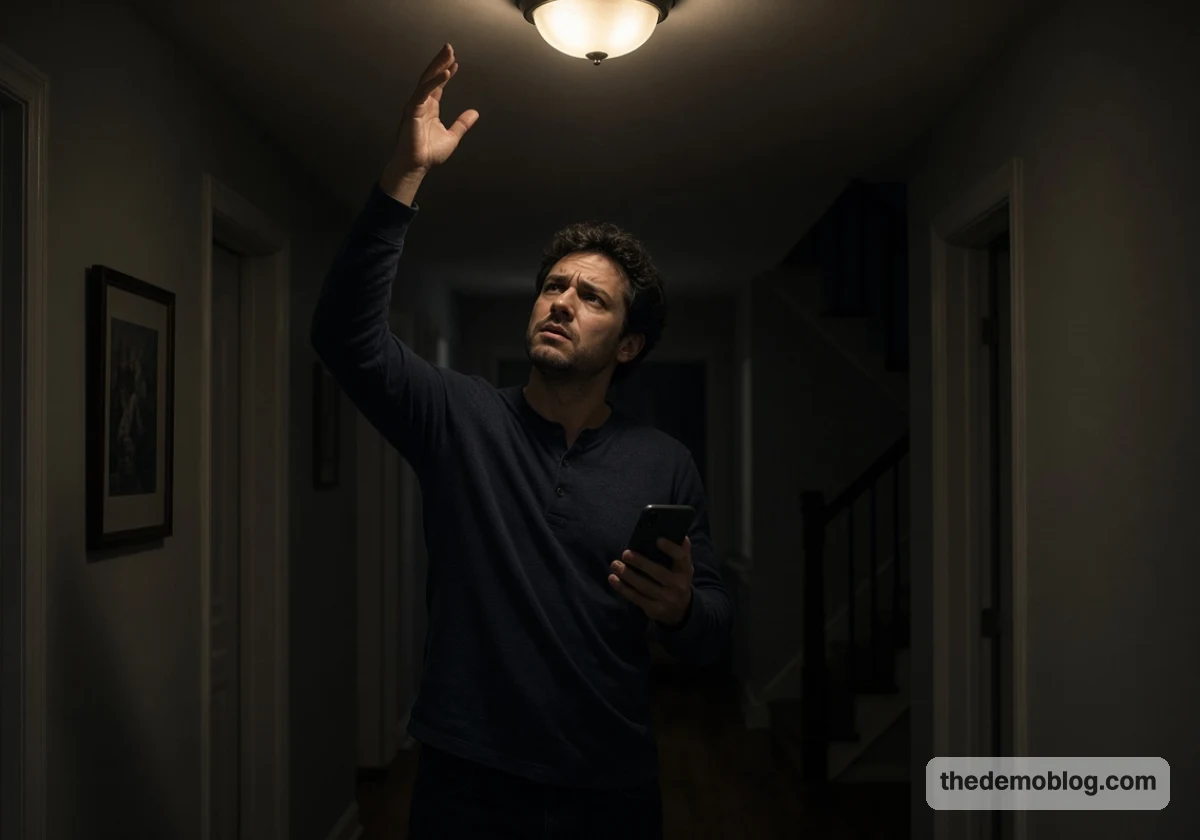
So, if you’ve ever stood in a dark hallway repeating “lights on” to a silent speaker, you’ve seen what happens when a smart device loses internet access.
This setup also leaves you dependent on servers you don’t control. During the October 2025 Amazon Web Services outage, some owners reported Eight Sleep smart beds stuck upright or overheating. The problem started in Amazon’s data centers, yet Eight Sleep still had to apologize for the sleep disruption.
You’ll find this cloud-based design in many budget Wi-Fi gadgets. It gives brands an easy way to offer quick setup and remote access. When you install these devices, some apps ask you to create an account before a plug even works.
We recommend checking the product page for offline features before you buy, especially if the app requires an account.
Offline Smart Home Functionality: Which Devices Keep Working and Which Go Dark
Some smart home devices keep working without internet access, while others stop responding. Devices that store their settings at home can still follow your commands, but cloud-based devices need an internet connection.
The table below shows how common smart home devices respond during internet outages:
| Device Type | What Happens Offline | What You Should Do |
|---|---|---|
| Zigbee or Z-Wave bulbs on a local hub | Keep following schedules and switches | Use them for your main lighting |
| Cloud-only Wi-Fi plugs | Stop responding to app and voice | Save them for non-essential lamps |
| Security cameras with cloud storage | Stop saving footage and sending alerts | Pick models with a microSD or recorder slot |
| Smart locks with keypads | Keypad codes often still work; app unlock fails | Test the keypad with the router unplugged |
| Smart thermostats | Keep heating and cooling on the last schedule | Set a sensible schedule on the unit itself |
You should check your cameras first. If they store footage in the cloud, an internet outage could leave you without a recording during a break-in.
Smart locks also need attention, so test both devices with your router unplugged this weekend.
Can Smart Home Problems Start Beyond Your Internet Connection?
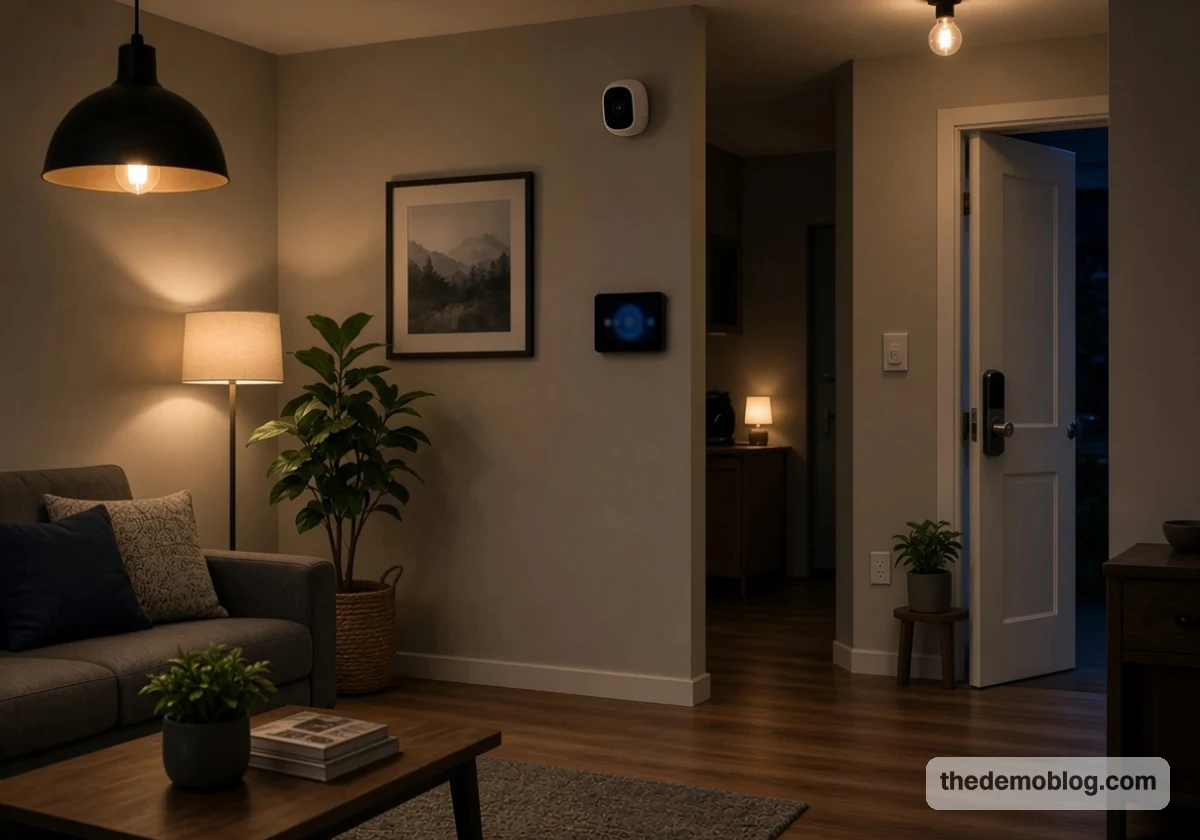
Yes, smart home problems can start even when your internet connection works perfectly well. The weak spot often sits between your router and the device, and fixing it costs less than upgrading your internet plan.
Before calling your provider, check these three common causes:
- Crowded 2.4 GHz Band: Many smart plugs and bulbs only connect on 2.4 GHz, which neighbors’ routers and your microwave also use. This overlap causes dropouts that look exactly like an internet failure. Switch your router’s 2.4 GHz channel between 1, 6, and 11 and keep whichever holds steady.
- Router Device Limits: Check your router’s device list and consider a mesh network if too many gadgets compete for the connection. When you have dozens of smart home devices connected, a basic router might struggle to keep them all online.
- Weak Signal at the Edges: Outdoor cameras and garage sensors often sit at the far edge of Wi-Fi coverage, where a parked car can block enough signal to knock them off. Walk the area with your phone’s Wi-Fi bars showing, and add an extender wherever they drop to one.
Fixing these three issues can stop many false “offline” warnings without changing your internet plan. However, if a device still loses its connection, it might rely on the manufacturer’s cloud. In that case, a local setup helps keep your devices running when the internet goes down.
Building a Smart Home That Keeps Running Without Internet
You can keep your smart home running during an internet outage with a system that processes commands at home. Local home automation systems handle commands inside your house, so your devices don’t rely on cloud servers.
The six steps below explain how to set up local control.
1. Start With a Local Hub Like Home Assistant or Hubitat
Home Assistant and Hubitat both run your devices from a smart home hub inside the house. Home Assistant runs free on a Raspberry Pi, while Hubitat Elevation ships ready to plug in.
Since the hub talks to each device directly, commands never leave your local network and lights respond almost instantly. Choose Hubitat for plug-and-play simplicity, or Home Assistant if you’re the type who enjoys a weekend project.
2. Pick Zigbee, Z-Wave, or Thread Radios Over Wi-Fi Where You Can
Zigbee, Z-Wave, and Thread are low-power radios built for smart gadgets. Unlike Wi-Fi bulbs, they talk to your hub without crowding your router.
Each device on these networks also relays signals for its neighbors. According to the Thread Group, Thread networks have no single point of failure and can heal themselves when a device drops out.
Whenever a product comes in both versions, take the Zigbee or Z-Wave one (your router will carry noticeably less traffic as a bonus).
3. Look for Wi-Fi Devices That Advertise Local Control
Some Wi-Fi gadgets still offer local control, even though many default to the cloud. Shelly relays, for example, accept commands over your home network without an account.
Look for terms like “local API” or “works offline” on the product box or website. And before buying, search online forums for the device model and “local control” to see what other owners report.
If you can’t find proof that the device works without internet access, consider another option.
4. Store Automation on the Hub
What happens to your smart home routines when the internet goes down? They stop working if a company server controls them.
That’s why you should store your routines on the local hub instead. This way, rules like “turn on the lights at sunset” will still work during an outage.
To keep those routines working during an outage, move them into your local hub. The hub can then run schedules and motion rules on its own processor.
Once you’ve set everything up, unplug your modem for an hour to test it. If a routine stops working, it still depends on the cloud.
5. Give Your Router and Hub a Small Battery Backup
If you have short power cuts at home, a small uninterruptible power supply (UPS) can keep your router and hub running. It works like a power strip and fits easily under a desk.
With backup power in place, your Zigbee and Z-Wave devices can keep working through short power cuts. These devices rely on their hub, so keeping it powered also keeps your lights and sensors connected.
When you’re choosing your UPS, add up the wattage listed on your router, modem, and hub. Then unplug the UPS and time how long it runs (homes along the Gulf Coast may need extra battery life during long hurricane outages).
6. Keep a Physical Switch or Key for Home Security and Heating
Manual controls help you keep your home safe and warm when smart devices lose their internet connection. For this reason, choose smart locks with a physical key or an offline keypad. Your thermostat should also have manual controls, so you can adjust the heat during a cold Minnesota winter.
Once you’ve added these manual controls, test both devices with the internet switched off before winter arrives. If either one stops working, replace it before a storm leaves you without a safe way to enter your home or control the heat.
Enjoy Smart Home Control Without Relying on the Cloud
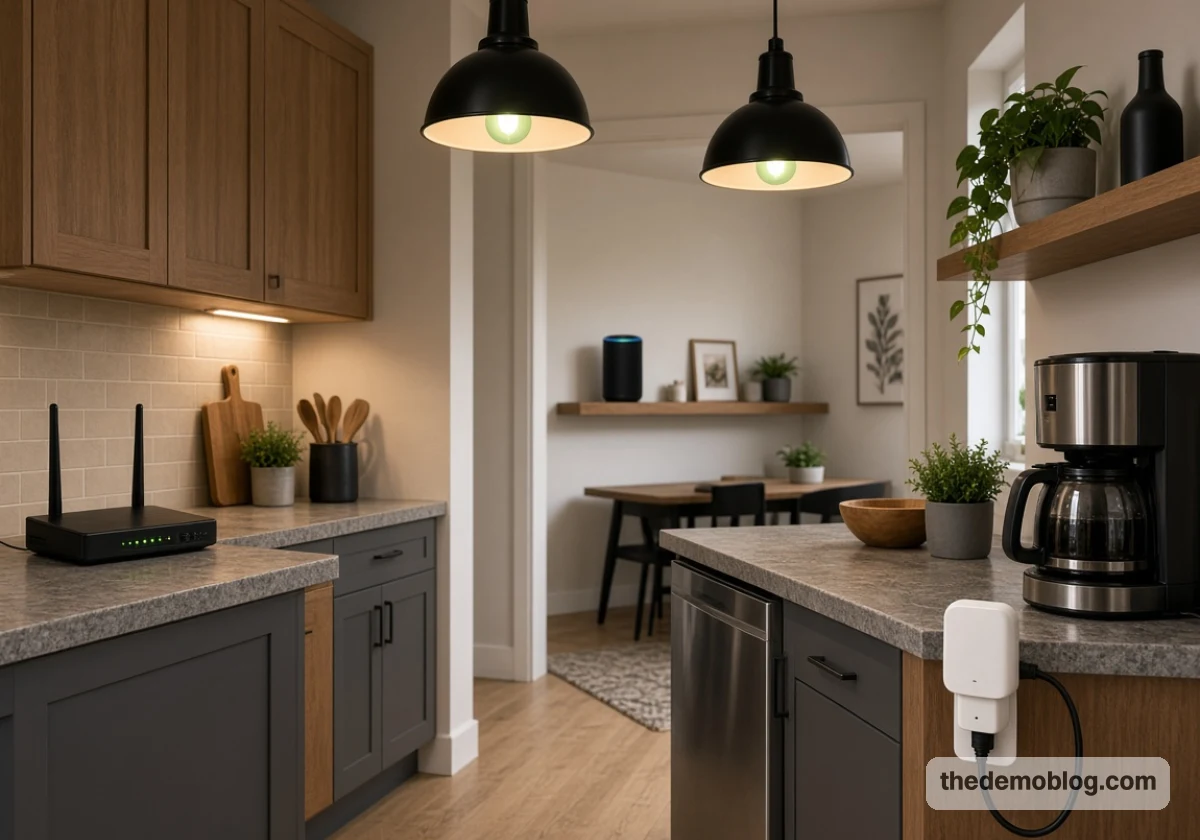
Many smart home devices stop working during an outage because they rely on cloud servers. A local hub solves this problem by storing commands inside your home, so compatible devices keep working without internet access.
You can test your current setup before buying anything new. Unplug your modem this week and note which devices still work. Those results will help you decide which devices need an upgrade.
If you’re looking for practical advice on smart home setup, privacy, or automation, The Demo Blog is here to help. Get in touch with us to suggest a topic or ask a question about your setup.