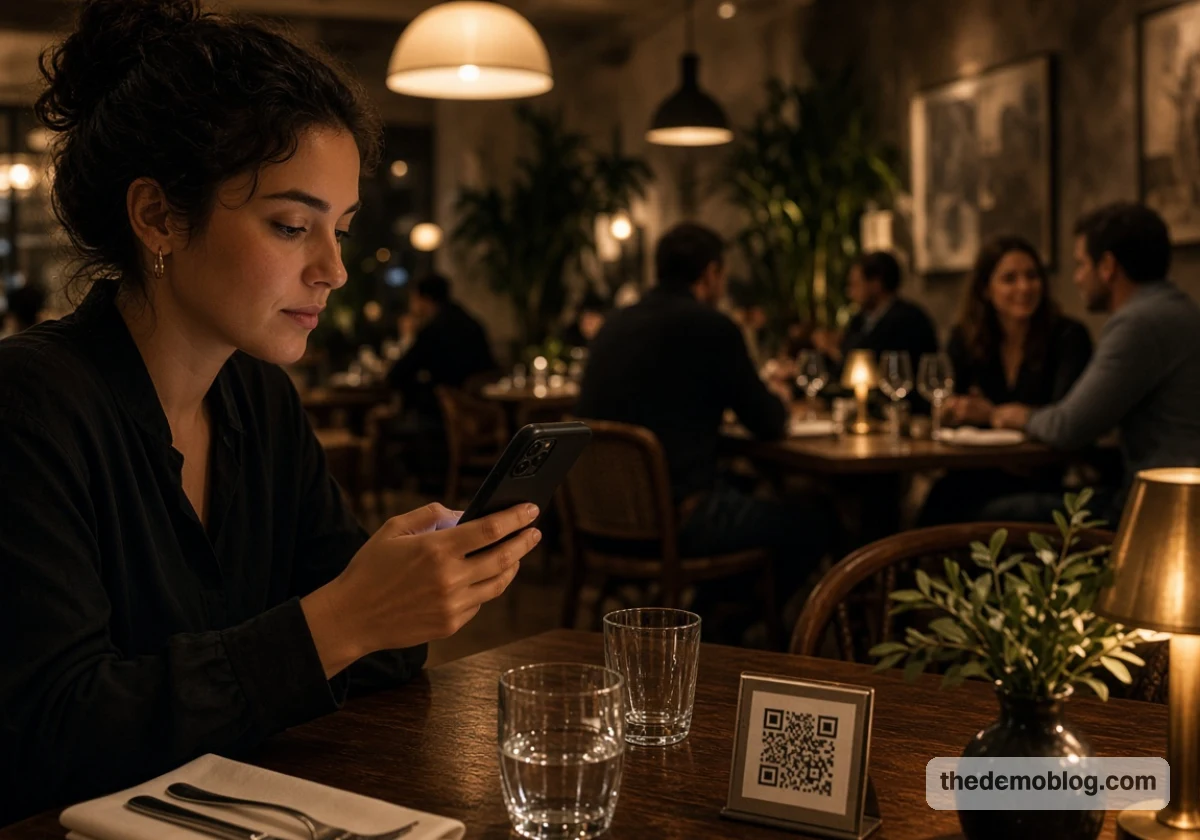
QR code menu problems often go unnoticed by the person who sets them up. An owner scans the code at the counter on strong Wi-Fi and assumes it works for every guest.
However, guests may have older phones, weaker signals, or poor connections at their tables. If the menu fails under those conditions, customers can’t access it when they need it. At The Demo Blog, we cover everyday technology issues that affect small businesses, and this is one we see often.
This guide covers the five reasons a scan fails, which guests get shut out entirely, and where the mobile page loses people before they order. It finishes with a testing routine your staff can run before service, so start with the scan.
Why Does a QR Menu Not Work When Guests Scan It?
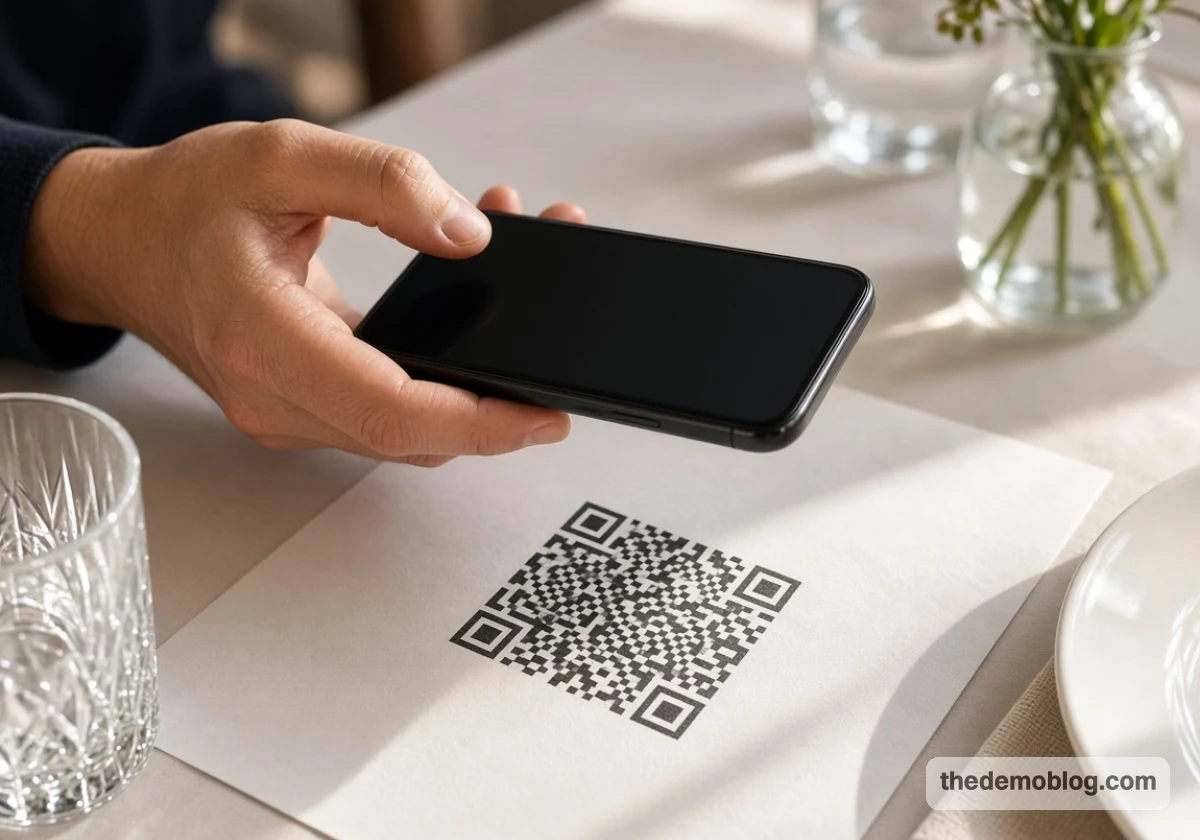
QR code menu problems tend to trace back to five causes: a dead link, weak signal, a poor print, an older phone, or a page too heavy to load. Each one looks the same to the guest, who just sees nothing happen, so we’ve paired every cause below with its fix.
The Link Behind the Code Has Died or Moved
Some QR code generators use dynamic codes that rely on redirect links hosted on their servers. If you cancel or the provider shuts down, those links can stop working. Your printed codes then fail.
To avoid this, choose a QR code that points to a page on your own domain, where you control the link. The code will keep working as long as your website remains online and the page address stays the same. If you move the menu during a website rebuild, set up a redirect from the old address so customers can still reach it.
There Is No Usable Signal at the Table
Basements, thick walls, and outdoor patios can weaken mobile signals, making it difficult for guests to get online. You may have seen guests holding their phones towards the ceiling, hoping to find a stronger signal.
When mobile coverage is poor, guest Wi-Fi gives them another way to connect. Display your Wi-Fi name and password beside the QR code. Or you can add a separate Wi-Fi QR code that connects guests to the network with one scan. Also, keep the password short and easy to type, so guests don’t struggle with a long string of symbols or have to ask a server for help.
The Code Was Printed Too Small, Too Glossy, or Too Low Contrast
Modern smartphone cameras can scan QR codes easily, but they still need a clear contrast between the dark squares and light background. Glossy lamination can reflect overhead lights and make the code harder to scan, while pale grey codes on cream paper may not scan at all.
For better results, print dark codes on a light, matte background and leave enough empty space around each one. Phone cameras use this clear border to detect the edges of the code. Before printing a full batch, test one copy under your dining room lights, as warm pendant lighting can make scanning harder than bright office lighting.
The Guest’s Phone Has No Built-In Scanner or an Old Operating System
Most recent iPhones and many Android phones can scan QR codes using their built-in cameras. However, older phones may need a separate scanner app (which guests are unlikely to download while dining).
A printed web address gives them another way to access the menu without installing anything. Add a short address below the QR code using your own domain followed by “/menu”. Then type it into your phone to check that it opens the correct page.
The Menu Page Is Too Heavy to Load on Mobile Data
The HTTP Archive’s 2025 Web Almanac found that the median mobile page size reached 2.6 MB, up 8.4% from 2.4 MB in 2024. Large dish photos and menu PDFs can make these pages even heavier by causing delays for guests using weak mobile connections.
It’s better to compress photos before uploading them and consider using a simple web page instead of a large PDF. We often find that print-resolution PDFs are a common cause of slow-loading menus on small business websites. Exporting them at screen resolution reduces their file size, which helps guests open the menu faster on their phones.
Restaurant Digital Menu Accessibility Leaves Some Guests With No Menu at All
Now, QR code problems affect some guests more than others. Older diners, people with low vision, and visitors without mobile data may have no other way to access the menu when the code fails.
This can also affect whether they return. A 2026 University of South Florida study found that frustrated older guests may choose not to visit the same hotel or restaurant again, which is a loss of future business.
Small text makes it worse, since thin, light gray type can be unreadable for someone who left their glasses in the car. In our experience covering small business tech, these guests rarely complain, so they order the one dish they remember or leave.
Watch for these guests when you plan a backup:
- Older Diners: Offer a paper menu when an older guest hesitates over the QR code. They shouldn’t have to struggle with a phone to see your food options.
- Guests With Low Vision: Larger text, strong contrast, and screen reader support make digital menus easier to use. Test these features on your own phone before making the menu available.
- International Visitors: Display your guest Wi-Fi details near the tables so visitors can connect easily. This helps those without local mobile data avoid roaming charges.
- Guests With Dead Batteries: Keep spare printed menus at every server station. Staff can hand one over immediately when a guest’s phone runs out of charge.
- Guests Without Smartphones: A QR code should never be the only way to view your menu. Keep paper copies available for anyone who prefers a printed version.
These alternatives help guests access the menu even when their phones or the QR code cause problems. You can also check how accessible your digital menu is by enabling text zoom and a screen reader on your phone. See if the text remains readable and the layout still works.

Mobile Menu Usability: What Breaks Between the Scan and the Order
A page that loads and reads well can still lose a guest before they order. Those losses tend to happen in the first few taps, at three spots worth fixing first:
- PDF Menus: Pinch-and-zoom PDFs force guests to scroll sideways across a page built for paper, and prices and allergens shrink until they’re hard to read. Rebuild the menu as a simple web page with text that fits the phone’s width.
- Missing Section Links: Add category links at the top of the menu so guests can jump straight to drinks, starters, or desserts. Otherwise, someone looking for the wine list might have to scroll through the entire food menu first.
- Stale Prices: When the screen shows a different price than the bill, the guest feels misled at the worst moment. Many digital menu platforms let you make menu updates from a dashboard, so edit the price the same day the kitchen changes it.
Start with the PDF, since rebuilding it usually solves the readability and navigation problems together. The other two fixes cost little, and each removes a reason to flag down a server.
Testing Your QR Code Menus the Way a Customer Would
None of those fixes count until you’ve seen them from a guest’s seat. The four checks below copy the conditions your diners face every night.
1. Scan With Both an iPhone and an Android Phone, Not the Office Laptop
iPhones and Android phones show a scanned link in different ways, so a code that opens instantly on one can stall on the other. A laptop webcam skips that step entirely and hides the problem.
Borrow phones from staff, scan with at least one of each, and try an older handset if anyone carries one. Confirm the code opens your menu rather than a generator’s sign-up screen (free generator accounts sometimes redirect to an upgrade page instead).
2. Test From the Worst Table Rather Than the Bar
The bar and host stand are usually closest to the router, so QR codes load quickly there. However, guests at the patio, back booth, or downstairs may have a weaker connection.
Test the menu in the area with the weakest signal to see how it performs for those guests. Turn off Wi-Fi on your phone so you can check how quickly the menu loads over mobile data. If it takes more than a few seconds, reduce the page size to help it load faster.
3. Check the Link Every Month and After Any Website Change
A QR code that worked when first printed can stop working months later, leaving guests with an error page. Since most guests won’t report the problem, you may not realise the link is broken until they ask for a paper menu or leave.
Regular checks help catch broken links before guests run into them. Scan every QR code once a month and repeat the check whenever you update your website. Then assign the task to one person and keep a record of the URL linked to each code. This makes it easier to identify whether a problem comes from the code, the domain, or the linked page.
4. Check That Paper Menus Sit Within Reach of Every Server
Every digital setup needs a backup that works with no phone and no signal. A few laminated menus at each server station cover dead batteries, failed scans, and guests who prefer print.
If you’ve ever watched a guest squint at a code and give up, you know when to step in. Count the copies before each shift (patio crowds have a habit of walking off with them).
Fix the Menu Before the Next Table Scans It
A QR menu that opens for you at the counter can still fail the guest at the back table on an old phone. The only reliable test copies that guest’s signal, device, and eyesight.
Start with the dead-link check and the worst-table scan this week, then set the monthly reminder. Keep paper menus stocked while you fix whatever those tests turn up.
Ready to make your restaurant’s tech easier for every guest? Contact The Demo Blog for more practical guides on QR menus and small business technology.